The Mediatopia CMS · Website and content
A website content management system you edit on the page itself
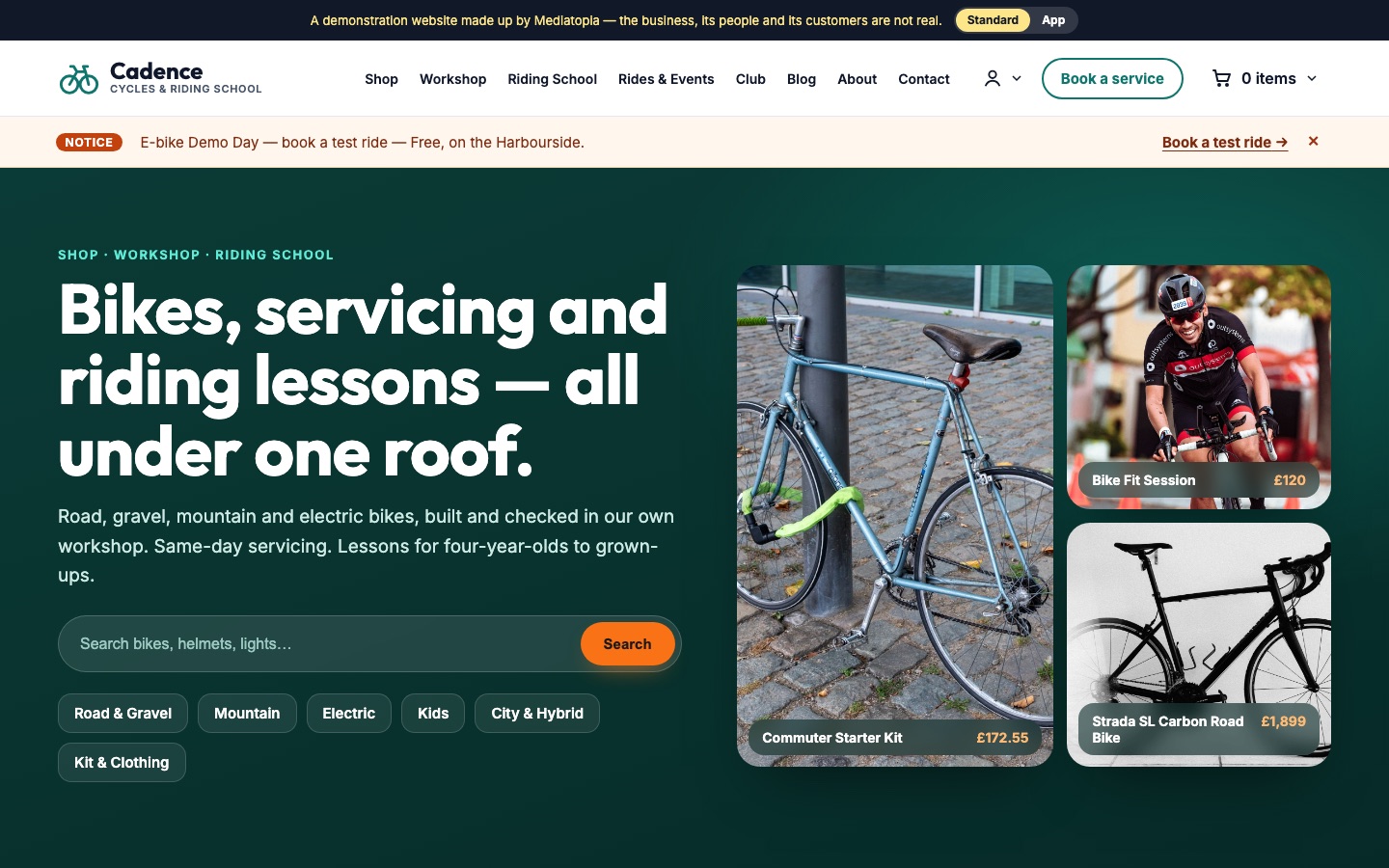
Our website content management system works on the page itself: open a page, click the words or photo you want to change, and type. Pages, menus, blog, case studies, team, events, galleries, videos, documents and SEO, all in one place, and nothing goes on your website until you say so.
What is a website content management system?
A website content management system, or CMS, is where you sign in to change your website. Your pages, your news, your photographs, your team and your opening times all live in it, and when you change something there, it changes on your website. Without one, every new photo or price is an email to your web designer and a wait.
Most of them work the same way: you change your page in a form, a long list of boxes that look nothing like your website, press save, then open the website in another tab to see whether it came out right. The Mediatopia CMS does it the other way round. You open the page itself, click the words you want to change and type.
It is the website content management system behind every brochure website and website redesign we do, with responsive web design as standard, and our SEO packages if you want help climbing Google.
Edit your website on the page itself
This is the heart of the Mediatopia CMS. You don’t learn a new screen to change your website: you change the website. Open a page, press Edit on the page, and the page opens as your visitors see it, with a line across the top that says “Click any words or photo to change them.” Click a heading and type over it. Click a photo, and choose another from your own library or upload a new one. Highlight some words and link them to another of your pages, or to a document.
Nothing you do reaches your website until you say so. Save keeps your changes as a draft, and the editor tells you plainly: “Your changes are saved, but not on the website yet.” Put live puts them on your website. If you’ve made a mess of it, Undo takes back what you haven’t saved, and Throw them away drops what you have, leaving the page on your website exactly as it was.
Lessons for every age
Small groups, patient coaches and bikes to borrow.
Book a lesson- 01Open the pageIn Pages, open the page you want and press Edit on the page. It opens looking exactly as it does on your website.
- 02Click and typeClick any words to change them, or a photo to swap it for one from your library or a new upload.
- 03SaveSave keeps your changes as a draft. Your website is untouched, so you can come back to it tomorrow.
- 04Put liveWhen you’re happy, Put live puts the page on your website. Changed your mind? Throw the saved changes away.
- Change words and photos where they sit
- Drafts that stay off your website until you say
- Link words to your pages or documents
- Undo, and throw away saved changes
- Photos from your own library, or a new upload
- A warning before you leave with unsaved changes
Add a whole new section in one click
Changing words is one thing; adding something new to a page is where most website editors fall apart, because you end up building a layout out of blocks and hoping it matches. In the Mediatopia CMS you press Add Section, choose Designs, and pick from a library of finished sections: a row of team members, a gallery, a set of questions, your latest news, your events, a documents list, reviews, a contact form and many more.
Each design arrives already in your website’s own colours, fonts and corners, so it looks as though it was always there. Then you fill it in the same way as everything else, on the page. Sections that show a list, like your team or your news, fill themselves from that list in the CMS, so adding a new person or a new post updates every page that shows them.
- A library of finished designs
- In your own colours, fonts and corners
- Lists fill themselves: news, team, events, FAQs
- Choose a design again whenever you like
A blog and news that keep your website alive
Google rewards websites that keep saying something new, and customers trust a business that’s plainly open and busy. The blog in the Mediatopia CMS is built for that: easy to write in, easy to schedule ahead, and set up so each post brings in readers and keeps them on your website.
Writing and publishing
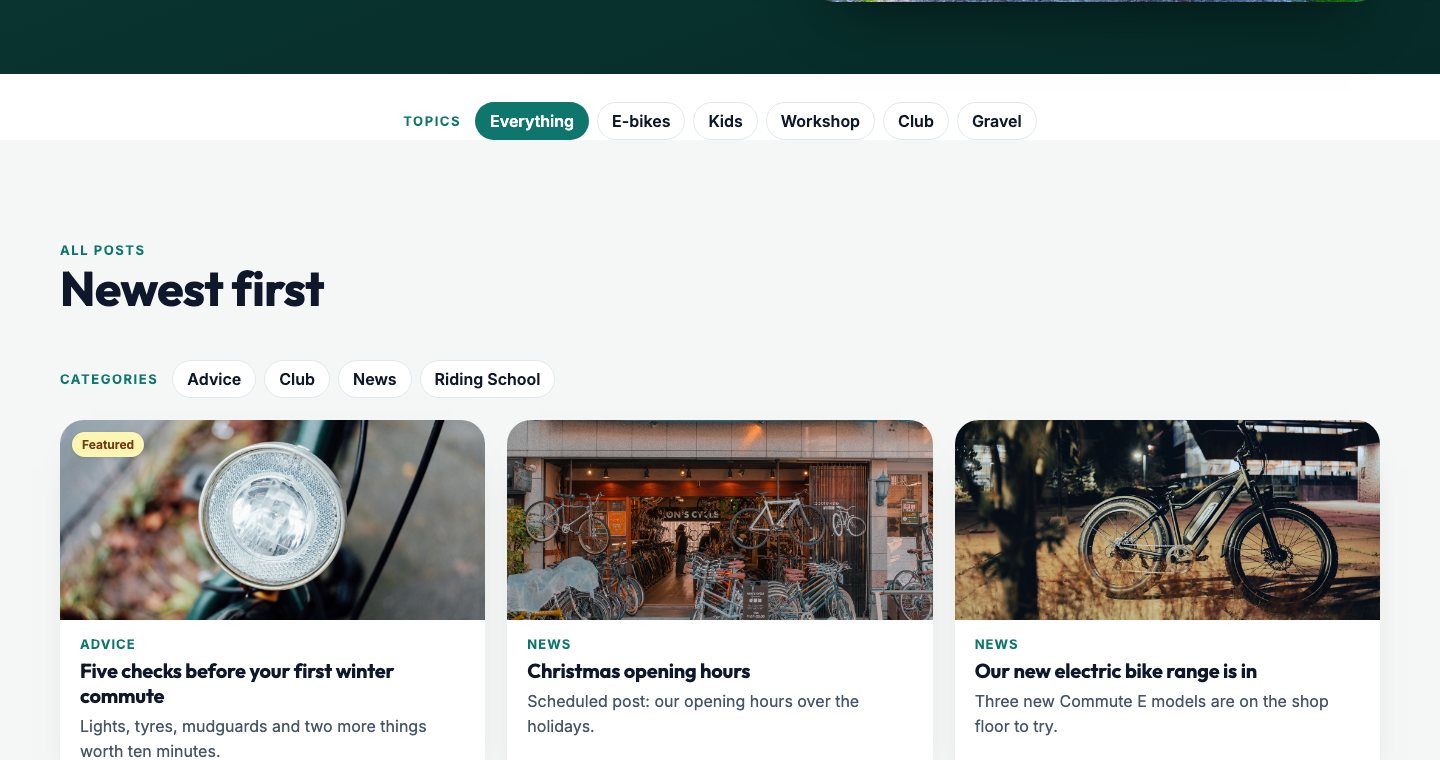
Write a post, give it a category, and publish it now or schedule it for a date and time, when it goes on by itself. Its address is made from its category and title, shown under the title, with a Preview to see it before anyone else does. Feature a post and it goes first, labelled.
Keeping readers reading
Readers can filter your blog by category or by topic. Under each post come related articles you’ve chosen, and posts that belong together can be an article series, shown as a panel so a reader can follow the whole series in order.
Shares and search
Each post has its own title for Google and its own share card: the title, words and picture that appear when someone shares it on social media or in a message. Views counts each post’s visits, so you know what people read.
Moving a post
Moved or replaced a post? Point it somewhere else and its visitors are sent on, for good or for now, so a link someone saved years ago still lands somewhere useful, and Google follows.
Notices for today
Some things everyone must see today: closed for a bank holiday, a road closure, a sale that ends at midnight. A notice goes up and comes down by itself on the dates you give it, with a button if you want one, and shows as a strip under your header that a visitor can close for the rest of their visit. Edit one in place, or put an old one up again next year in one click.
Show your work: case studies, testimonials and your team
People buy from people they trust, and trust comes from proof. These three parts of the CMS are where that proof lives, each kept as its own list, so you write it once and show it wherever it helps.
Case studies
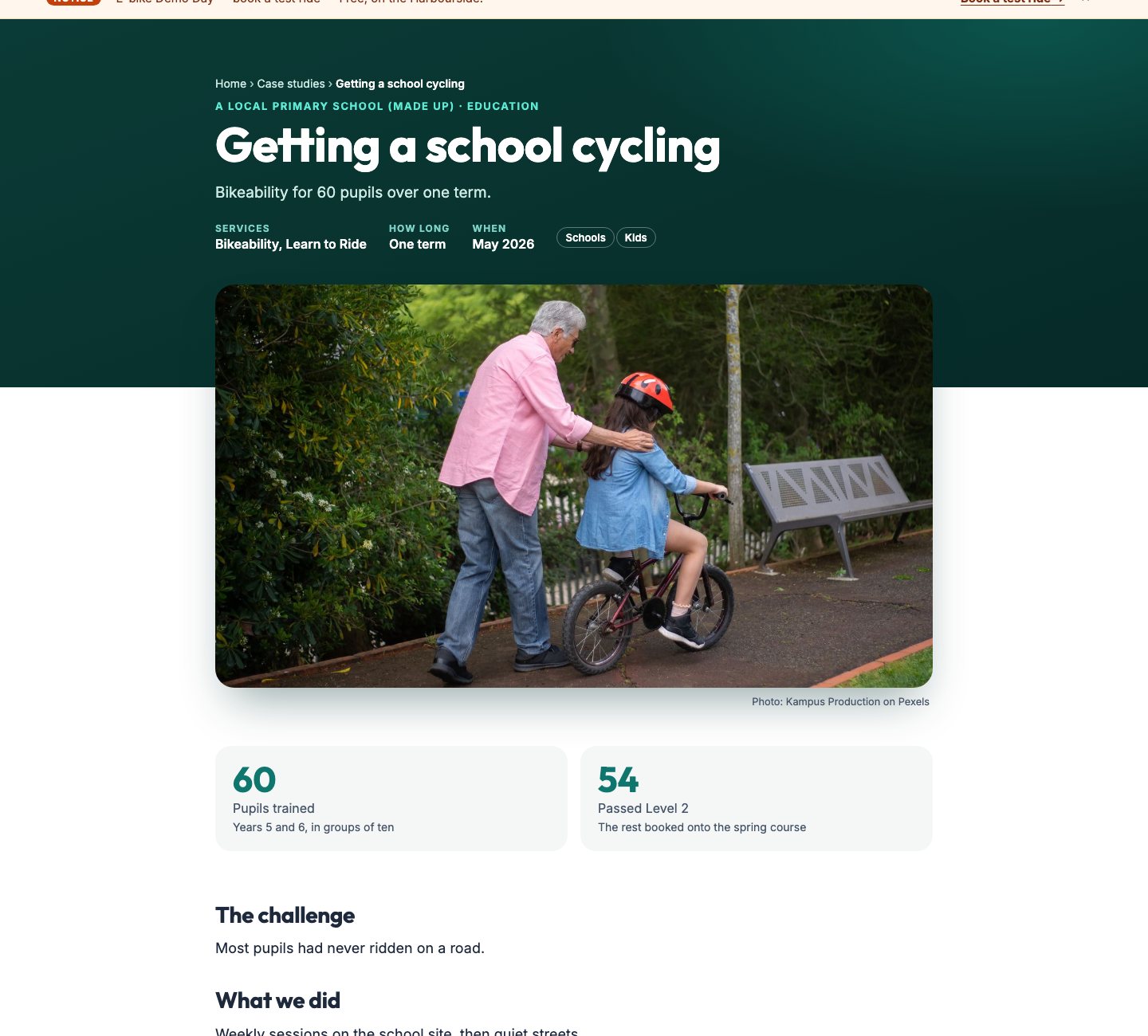
Each case study gets its own page: the challenge, what you did and the results, with figures, the services used, how long it took and when. Add the client’s quote, a before and after slider, a video and a gallery of the job, and related case studies follow underneath. Feature your best and they go first.
Testimonials
What your customers say, with their stars, role, company and photo, marked as a verified customer, with where it was first posted and a link to see it there. Add your own reply. Tag them, and the right ones show on the right page: the riding school’s testimonials on the riding school page. A customer’s email address stays private.
Team pages
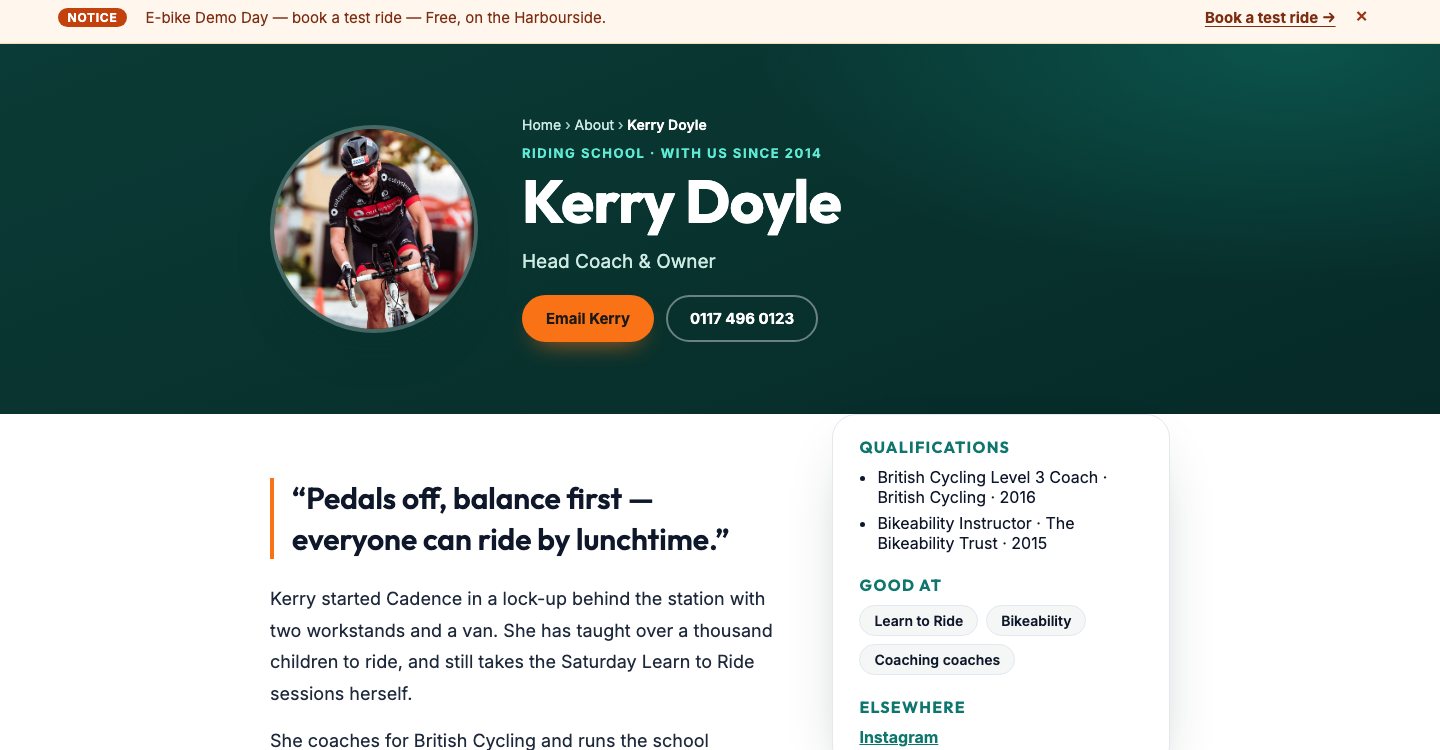
Everyone in your team can have a page of their own: photo, job title, how long they’ve been with you, their story, qualifications and who issued them, skills, and their email and phone as buttons if you want them shown. Each page has its own SEO and is added to your sitemap. Someone who isn’t public-facing stays off the website entirely.
Events people can sign up to
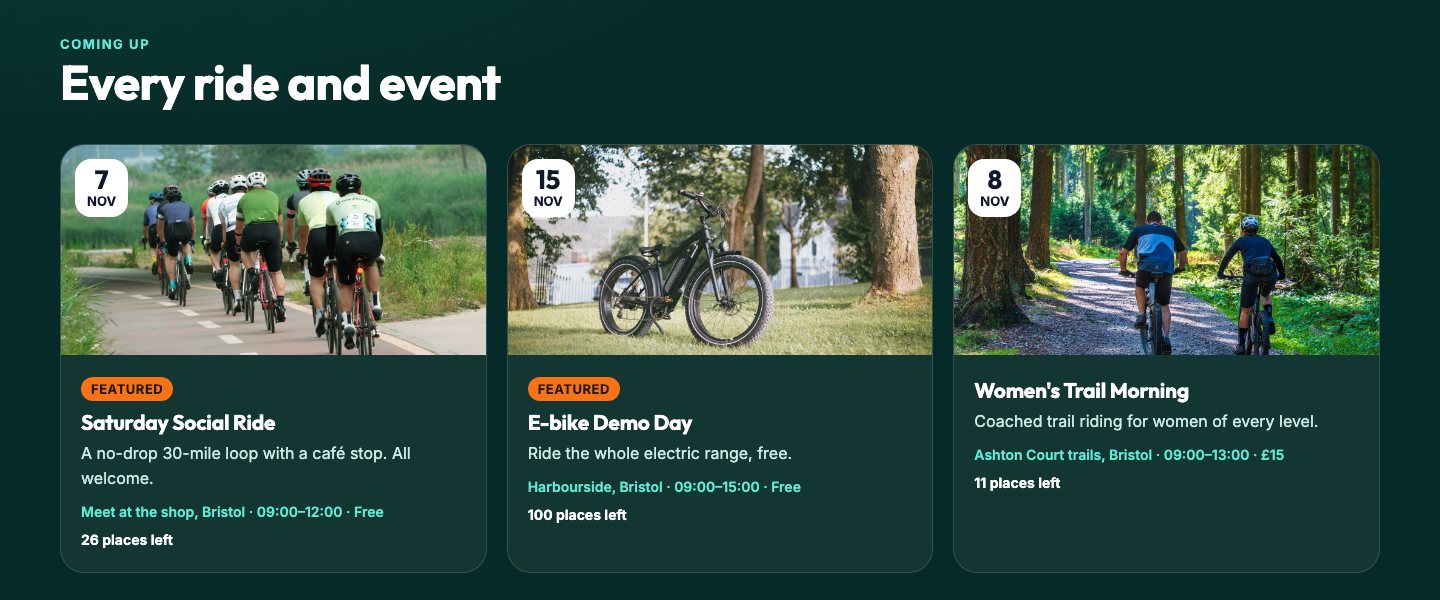
Open days, club rides, workshops, talks. Add an event with its date, time and place, and it appears on your website wherever you show your events. Visitors put their name down on the website, and each event’s Attendees tab lists who’s coming, with the numbers counted on your events list, so you know how many chairs to put out.
Questions and answers, told to Google
Every business answers the same questions every week. Put them in FAQ once, in categories, and show them on any page: all of them, one category, or a tag, with “See also” links between related questions. Answers keep their formatting, and the questions you choose are marked up for Google, so they can appear as answers in search results as well as on your page.
Pictures and video on your website
Photographs sell more than anything you can write. The Mediatopia CMS keeps every one of them in one place and shows them properly, whether it’s one picture on a page, a gallery of a hundred or a library of how-to videos.
Media library
Every picture and file in one library, in folders. Give a picture its description for screen readers and Google once, and every section that uses it takes it. Set a focal point and the picture is cropped around it, so a face is never cut in half on a phone. Each picture shows where it’s used, with links, and the library warns you what would lose it before you delete it.
Photo galleries
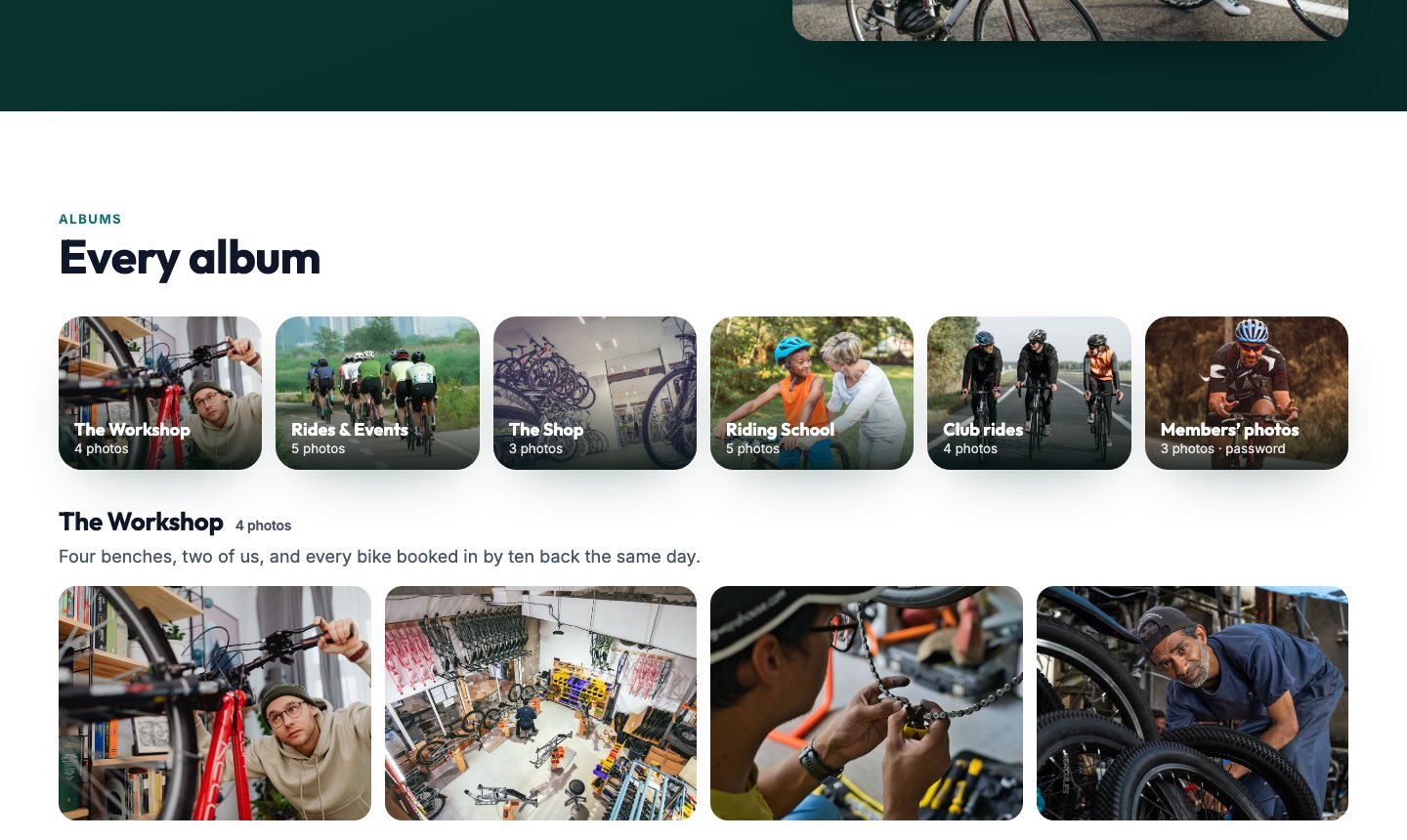
Albums of photographs, each drawn in the layout you choose: grid, masonry, bento, carousel, slider, thumbnails below or beside, a photo story or caption cards. Albums can sit inside albums, and an album can have a password, for a wedding, a members’ day or a client’s job. Each photo can carry its photographer, place and date.
Videos
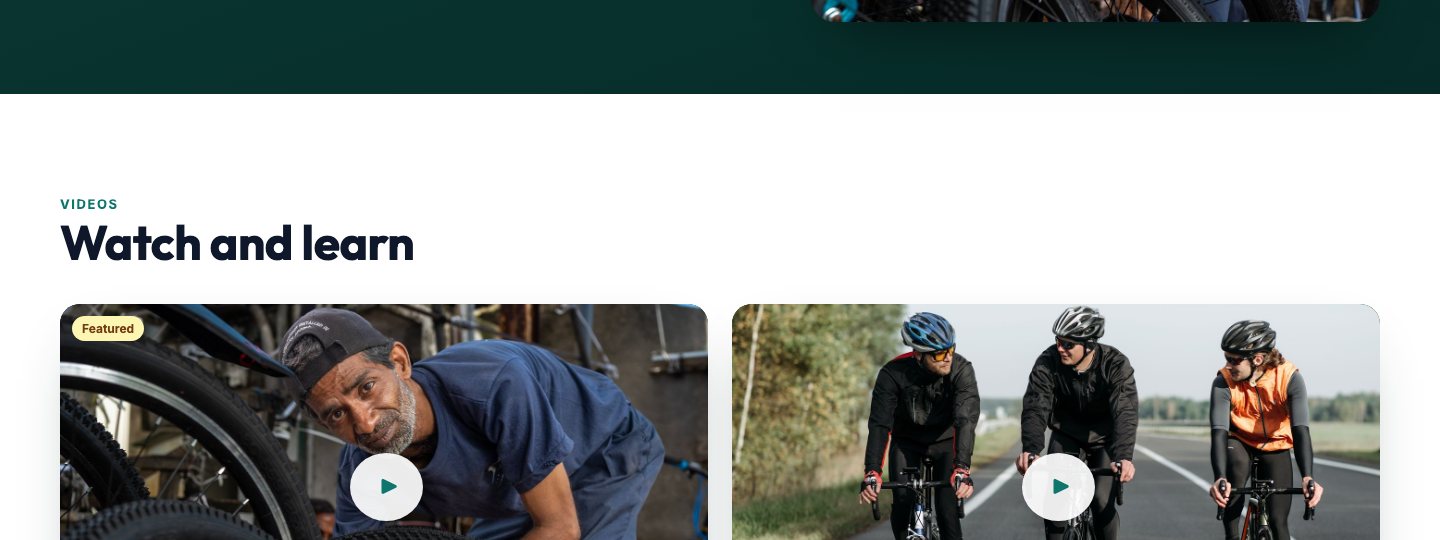
Each video gets its own page with its player, chapters that jump to the right moment, the transcript, tags and more videos to watch, marked up for Google. Schedule a video for a date and time, or keep one unlisted, so only people with the link can see it.
Documents and downloads
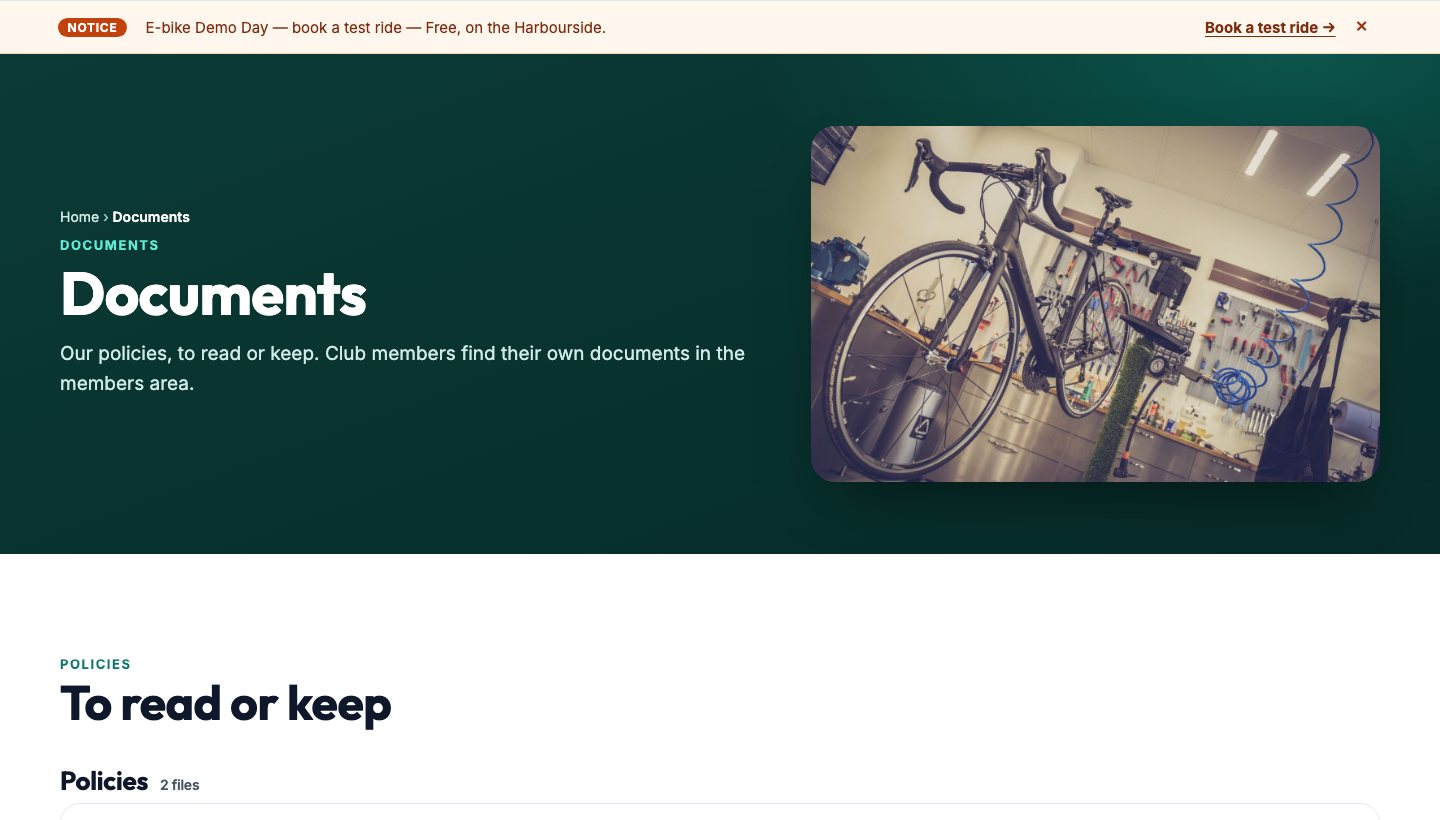
Most websites have a handful of PDFs nobody can find, uploaded years ago. Here each file is kept, titled and placed where it’s wanted, and you can see whether anyone opens it.
Documents
Policies, price lists, forms, menus. Put them in folders and decide who sees each one: everyone on your website, members once they’ve signed in, or one person, in their own members area under “Just for you”. Link a document to a page and it shows there. The CMS counts how often each one is opened.
Downloads
Files for visitors to take away: a guide, a brochure, a template. Each has its own address and thumbnail, can be protected by a password or taken off your website on an expiry date, and every download is counted. Or give it in exchange for an email address, with a consent tick and the choice to add them to your newsletter, and see who asked.
Locations, accreditations, tags and links
The smaller lists that make a website complete, each kept once and shown wherever you want it.
Locations
Your branches, offices or the places you work, each with its details, shown on any page that lists them.
Accreditations
The trade bodies, awards and certificates that make customers trust you, with their logos, shown wherever they help.
Tags
Topics across your website. Visible tags show on your blog as topics, and a topic shows every post tagged with it.
Links
Links to show in your footer or on your contact page: your social media, your partners, the places you’re listed.
A website CMS with SEO built in
Search engine optimisation is the part most website owners pay extra for and never quite understand. In the Mediatopia CMS the basics are part of everything you add, so a new page, post or team member is ready for Google the moment it’s live.
- Every page and post with its own title and description
- Share cards for social media and messages
- A sitemap that keeps itself up to date
- Google’s structured data for questions, videos and people
- Addresses made from your words, not numbers
- Old addresses sent on to new ones
Staff logins and the audit trail
Give the people who help you their own login. Add a user in User Permissions and they get a real sign-in of their own, so nobody shares a password. Every change is written into the Audit Trail: who changed what, and when, so if a price changes on a Saturday night you can see who did it.
On phones, and as an app
Most of your visitors are on a phone, so every website we build on the Mediatopia CMS is designed for phones as carefully as for a desk, with a full-screen menu that has every page in it. If you want your website to feel like an app on a phone, it can have the App look: the same website and the same CMS, laid out for a thumb, with a bar along the bottom.
And because you edit on the page, you can change your website from your phone too, on the bus or in the van.
Who is our website content management system for?
Any business or organisation that wants to change its own website without learning a piece of software to do it.
Local service businesses
Services, case studies, reviews and an enquiry form that lands in the CMS.Schools and nurseries
News, events, letters and policies as documents, and photo albums with passwords.Clubs and associations
Events with sign-ups, members’ documents and galleries of the season.Professional firms
Team pages with qualifications, case studies and questions answered for Google.Trades and contractors
Before and after sliders, accreditations and the areas you cover.Charities and community groups
News, events, downloads and a team page for every volunteer.Shops and makers
A blog and video library beside the shop, to bring people in.Anyone who blogs
Scheduled posts, categories, series and share cards that do the work.
Questions about our website content management system
Do I need any technical knowledge to edit my website?
No. You click the words or photo you want to change on the page and type, or pick another photo. If you can edit a document, you can edit your website.
Can I change something without it going straight onto my website?
Yes. Save keeps your changes as a draft; nothing reaches your website until you press Put live.
Can I add new sections to a page myself?
Yes. Add Section opens a library of finished designs in your website’s own colours and fonts.
Is it WordPress?
No. The Mediatopia CMS is our own system, so there are no plugins or themes to update or break.
Can my staff have their own logins?
Yes. Each person gets their own sign-in, and the Audit Trail records who changed what.
Can I try it before I buy?
Yes. Press Try it now and you’re in your own copy of our demo website and its CMS for 10 minutes, with nothing to fill in.
How much does it cost?
See our pay monthly websites for prices.
Book a guided demo of the Mediatopia CMS
Tell us a little about your business and what you would like to see, and we will be in touch to arrange a time to show you round the CMS.
Try it for yourself
Your own copy of a working website and its content management system, ready in seconds. No form, no sales call.